
Total Commission Control
for Life & Health Agents
Stop losing track of your commissions. ComTrack gives insurance agents complete visibility and control over their earnings with automated tracking and powerful analytics.
“It's really good.”







All carriers in. One master statement out.
Every life & health product line, aggregated into one place
UnitedHealthcare
Anthem
Mutual of Omaha
Physicians Mutual
Globe Life
Wellabe
Bankers Fidelity
Humana
Wellcare
Cigna
GTL
American Amicable
United American
Heartland National
- See all 400+ carriers
Kaiser Permanente
ManhattanLife
Foresters
Transamerica
Gerber Life
Baltimore Life
Kansas City Life

Anything that can be automated... should be.
ComTrack is the modern commission platform that unifies carrier data, real-time analytics, and agency management — all in one place.
It's fast. It's reliable. It's beautiful.
And it scales with you.
Because you deserve more than
vanity metrics. You deserve clarity.
It starts with the statement
Drag and drop your commission statements, or let ComTrack automatically retrieve them from your carrier portals — whether they're XLSX or PDF files.
Explore Retrieve400+ Carrier mapping engine
Every carrier layout is pre-mapped. Drop in XLSX, XLS, CSV, or PDF statements and never map a column by hand again.
Learn moreRetrieve
ComTrack automatically pulls statements from your carrier portals, one time or on a set schedule.
Learn moreFMO statements supported
Works with FMO and upline statements as well as files that come direct from the carrier.
Learn more“Our inside agents and outside agents love ComTrack. Every pay cycle they have visibility into each client they're getting paid on and for how much. It's beautiful.”
Christian Brindle
CEO at Everything
Senior Insurance

Missing Commissions
From application to commission to renewal, gain full visibility into every stage of a client's policy and quickly spot policies that fall off.
Explore Analytics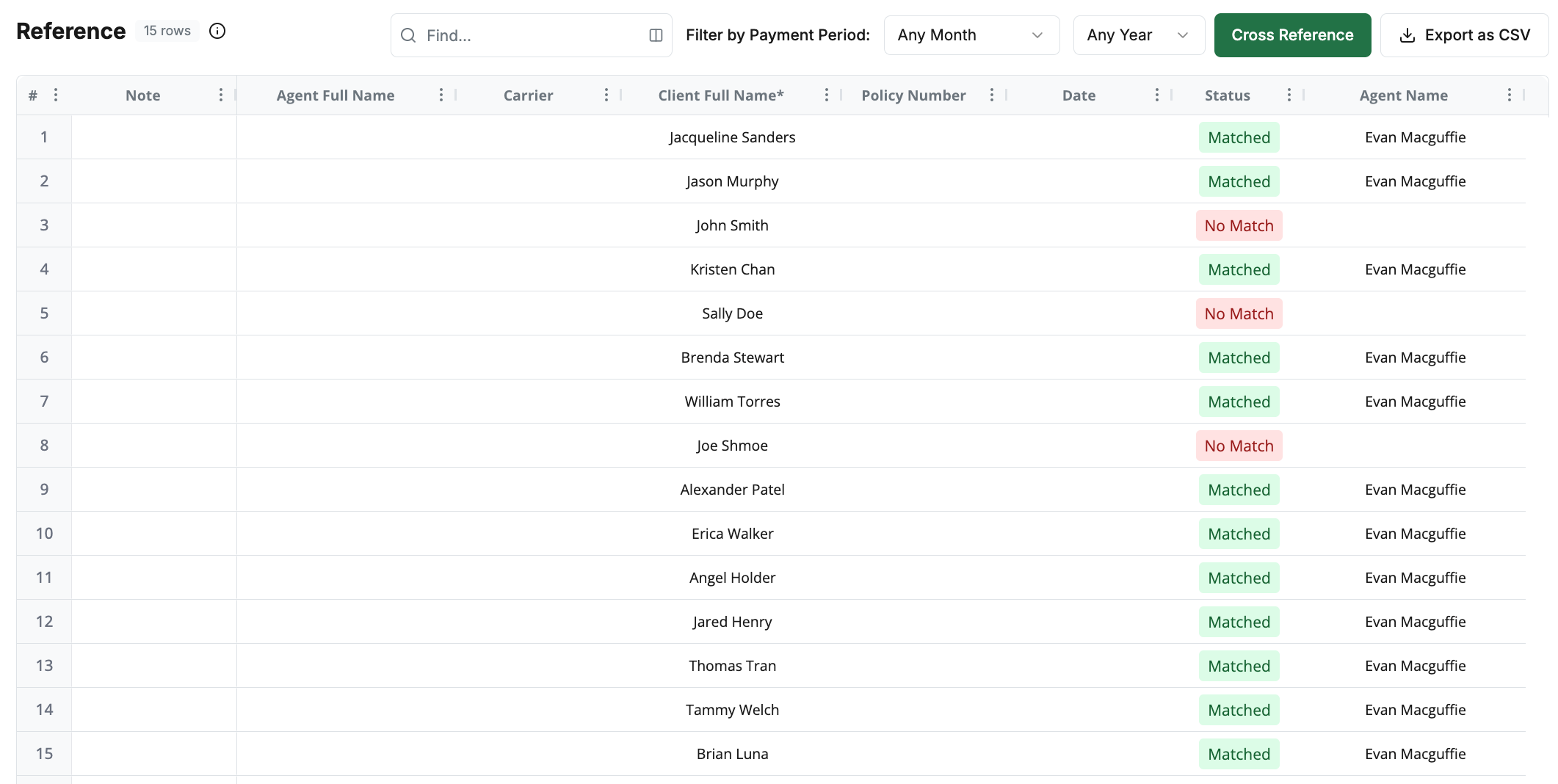
Missing Renewals
Renewals that quietly stop paying get flagged, so a lapsed check never slips past you.
Learn more“For the majority of our partners, ComTrack is the obvious commission reconciliation and payment tool. From both a pricing and capabilities perspective, it is uniquely positioned for the market.”
Justin Brock
CEO at Brock

Connect with your favorite tools
Extend ComTrack, streamline workflows, and connect your favorite tools, with new integrations added constantly.
Explore integrations








Impress your downlines
Give LOAs and downlines powerful portals to view client breakdowns, dashboards, payroll history, leaderboards, and more.
Explore Portals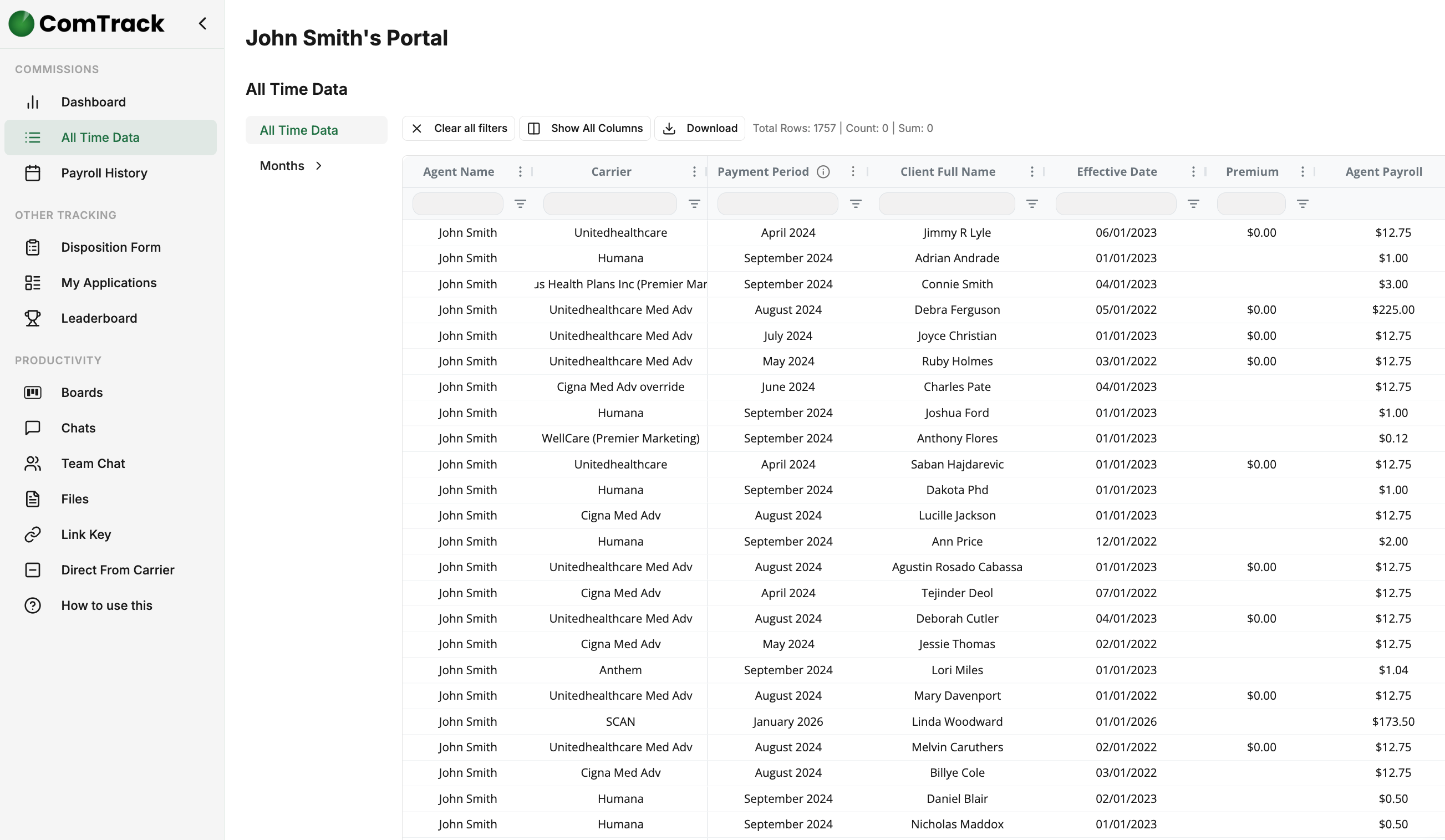
Full pay visibility
Every downline sees exactly what they earned, per policy and per pay period.
Learn more“ComTrack has been an outstanding solution for our business. The platform is intuitive, reliable, and incredibly easy to use, so we've rarely needed support. On the few occasions we've had questions, their team responded almost immediately and resolved everything quickly. If saving time and improving efficiency are priorities, I highly recommend ComTrack!”

Andrew Rosenberg
CEO at Health Resource Advisors

Built to scale
Our powerful, battle-tested infrastructure digests hundreds of millions of rows & files monthly and can scale infinitely with your business needs.
STATEMENTS DIGESTED
0
COMMISSION ROWS PROCESSED
0
COMMISSIONS TRACKED
$0.00
Trusted by agencies of every size
Join 350+ agencies who use our commission platform to take their operations to the next level.
Commissions functionality is certainly not easy. I applaud you for finding the secret sauce, the silver bullet to make this happen.

Randy Pierson
Chief Sales Officer at Gordon Marketing

Adopting ComTrack within the last year has saved me so much time and so much aggravation. Oh my gosh, I love it. It's a great product.

David Mullane
Director of Strategic Partnerships at TLC Insurance Group
What you guys are offering is insane, and I wish we'd have known about it a year and a half ago.

Meagan Thompson
VP of Operations, Elite Insurance Group
Really nice product. Aside and apart from the product, honestly, Evan, you understand our business, clearly.

Thomas Graziano
Managing Partner, Lasting Mark
Commissions is probably the most stressful part of running the agency, and I just feel so much better about this.

Brandon De La Pena
Owner & CEO, DLP Insurance Solutions

This is what I have been looking for. Once I know what I make, I can set sales targets. This is the very beginning of us starting to scale the business.

Jeffrey Bernard
Owner, Simplicity Health Solutions
It's Excel on steroids.

Tonya Labenz
Owner, TL Insurance Advisors

That's worth quite a bit of money right there, just to get that time back.

Nick Swearngin
Owner, Navigating Senior Health

I love the system you and your team have built. The ability to properly track items for downline agents through the override tracking is especially helpful.

Jay Rayl
Senior Regional Manager, TLC Insurance Group & Medicare Made Simple
What a lifesaver. This is freaking genius. This is even better than I hoped.

Jessica McDaniel
Managing Partner, MAC Insurance
My mind is blown, and I'm so happy.

Casey Oliveira
Partner & Insurance Advisor, Axis Financial





Supercharge your admin efforts
See why ComTrack is the commission tracking platform of choice for modern insurance teams.